Google Merchant Center: the complete guide for ecommerce
Merchant Center decides whether your products appear in Google Shopping, in free listings, in Performance Max and in Google's AI answers. This guide shows how to set it up, what Google expects from your feed, how to enrich it with Channable and how to add local inventory and promotions. Free, with everything I learned at online stores with thousands of products.
By Fabiano · updated November 19, 2026 · 15 min read
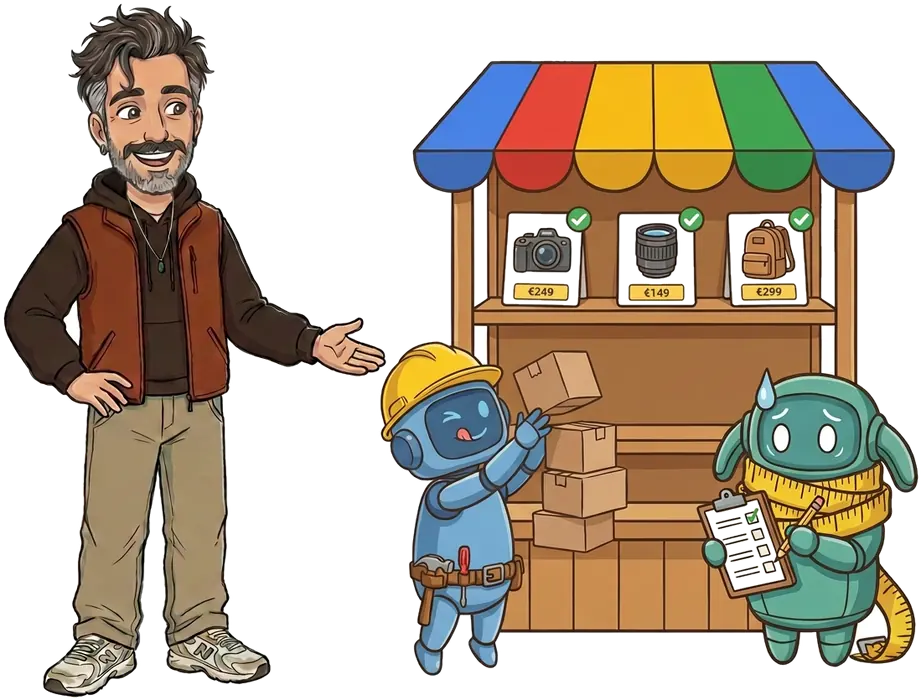
Google Merchant Center is the free platform where you give Google your product data (the feed). That is how your products appear in Shopping ads, Performance Max, free listings on Google and in AI Mode. The more complete and correct your feed, the more often and the better Google shows your products, both paid and organic.
What is Google Merchant Center?
Merchant Center is not an advertising platform. It is where Google gets to know your products: title, price, stock, image, brand and dozens of other attributes. Google Ads, the free listings and Google's AI features get their product information from there (Google).
Shopping ads and Performance Max
PaidWhat you needA feed in Merchant Center, linked to Google Ads
Free listings on Google, the Shopping tab, Images and Lens
FreeWhat you needA feed with the free listings option switched on
AI Mode, AI Overviews and the Gemini app
Free and paidWhat you needA rich feed: the more context, the better the AI understands your product
YouTube and Demand Gen
Free and paidWhat you needA feed linked to Google Ads, good images
Google Maps and local search
Free and paidWhat you needLocal inventory and a linked Business Profile
In the European Economic Area, Shopping ads and free listings run through a Comparison Shopping Service (CSS). You choose it in Merchant Center (Google).
Set up Google Merchant Center in 6 steps
Creating an account takes half an hour. Most of the work is in the settings Google uses to check your offer. Do not skip those: wrong shipping costs or a missing return policy are among the most common reasons for disapproval.
Create an account
Go to merchants.google.com and log in with your business's Google account. This is also where you log in later (search term: merchant center login).
Enter your business details
Business name, address, customer service and the countries where you sell. Use the same name as on your site.
Verify and claim your website
Through Google Tag Manager, an HTML tag or Search Console. Without a claimed site you cannot show products.
Set up shipping and returns
Per country: costs, free-shipping threshold, handling time and delivery time. Return window and who pays return costs. This must match your site exactly.
Add your product data source
Through a plug-in of your store, a file or a feed tool such as Channable. Choose a fixed fetch time, preferably every day.
Connect Google Ads and choose your CSS
Link your Google Ads account and choose a CSS. Switch on the free listings.
Tip from practiceSet the same shipping costs in Merchant Center as in your shopping cart, to the cent. At two online stores I found a difference between the feed and the account settings. The value in the feed wins, so Google showed the wrong costs.
What goes in your product feed
Google has a long specification (Google). You do not need all of it, but the attributes below together decide 90% of the result.
id, title, description, link
Required?Yes
Why it mattersThe basics. The title is the most important field for being found.
image_link and additional_image_link
Required?Yes, extra images recommended
Why it mattersThe image decides whether someone clicks. Extra angles and a lifestyle image help.
price and sale_price
Required?Yes
Why it mattersMust be exactly equal to the price on your product page, including VAT where your market shows prices with VAT.
availability
Required?Yes
Why it mattersIn stock, out of stock or preorder. Must match the site.
brand, gtin, mpn
Required?Yes for branded products
Why it mattersWith a valid GTIN (the barcode number), Google matches you to the right product and compares your price.
condition
Required?Yes for used items
Why it mattersNew, used or refurbished.
google_product_category, product_type
Required?Recommended
Why it mattersHelps Google place your product. You also use your own product_type in your campaigns.
item_group_id, color, size
Required?Yes for variants
Why it mattersShows Google that it is a product family.
product_highlight, product_detail
Required?Optional
Why it mattersShort benefits and specifications. They are becoming more and more important for AI Mode.
custom_label_0 to 4
Required?Optional
Why it mattersYour own labels, for example for margin or season. Only visible to you, in Google Ads.
The GTIN is the barcode number on the packaging, usually a 13-digit EAN in Europe and a 12-digit UPC in North America. Never make one up: a wrong GTIN gets you a disapproval.
Why the quality of your feed decides whether you are found
Google shows the product that best matches the search. That applies to paid ads and to free listings. Google reads your feed for that, not your product page. If an attribute is not in your feed, it does not exist for Google. If someone searches for "mirrorless camera 4K", your product drops out if 4K only appears in a picture on your site.
How quality carries through
More impressions
A complete title and the right attributes let you match more searches, including long and specific ones.
Lower cost per click
Relevant products get more clicks per impression. That often means you pay less per click in Google Ads.
Fewer disapprovals
Correct prices, stock and GTINs keep your products online. A disapproved product appears nowhere.
Visible in AI
AI Mode and Gemini choose products they can explain. A rich feed gives them that explanation.
Titles, descriptions and images that work
Google advises putting the most important attributes at the front of the title, such as brand, type, size and color (Google). These are the structures that work best for my clients.
Electronics and cameras
Title structureBrand + model + type + key spec + color
ExampleFujifilm X-M5 mirrorless camera 26 MP 4K black
Clothing
Title structureBrand + product + gender + material + color + size
ExampleLevi’s 501 jeans men denim blue W32 L34
Home and furniture
Title structureBrand + product + material + dimensions + color
ExampleHAY Palissade bench steel 160 cm anthracite
Parts and accessories
Title structureBrand + product + compatible with + spec
ExampleCanon LP-E6NH battery for EOS R5 and R6 2130 mAh
Title
Maximum 150 characters, and the first words matter most: often they are all that is shown. No capitals everywhere, no promotional text such as ‘FREE’ or ‘-20%’.
Description
Write for a person: what is it, who is it for, what makes it different. Repeat the main attributes in plain sentences.
Main image
Product on a plain, light background, no text or logo over it, preferably at least 800 by 800 pixels.
Extra images
Up to ten extra images: other angles, details and the product in use.
Tip from practiceDo not put promotional text in your titles. Google flags that as ‘non-product data’. At one of my clients that applied to more than 1,400 titles. Promotions belong in a separate promotions data source, further on in this guide.
Fixing disapprovals and warnings
In Merchant Center you see per product whether it is approved, limited or disapproved, and why. These are the messages I run into most often, with the fix.
Price mismatch
CauseThe feed has a different price than the product page. Often because of rounding or a forgotten sale price.
FixSend the exact price, with cents. Refresh the feed after every price change.
Landing page not working
CauseThe product has disappeared from the site, but is still in the feed.
FixExclude products with a 404 and check that regularly.
Invalid or missing GTIN
CauseCode copied wrongly or missing on a branded product.
FixTake the EAN from the packaging or the supplier.
Image too small or with text
CauseLogo, promotion sticker or watermark on the main photo.
FixUse a clean product photo as the main image.
Policy message without a clear reason
CauseSometimes a system error, for example with regular cameras or lenses.
FixRequest a review per product through ‘I disagree with this issue’.
Shipping costs missing
CauseNo shipping set up for a country.
FixSet up shipping for every country where you sell.
Tip from practiceA feed that was fine yesterday can contain errors today. At an online store with nearly 5,000 products, products kept disappearing from the site every month while still in the feed. A fixed weekly check keeps your budget from going to dead pages.
Enriching your feed with Channable, step by step
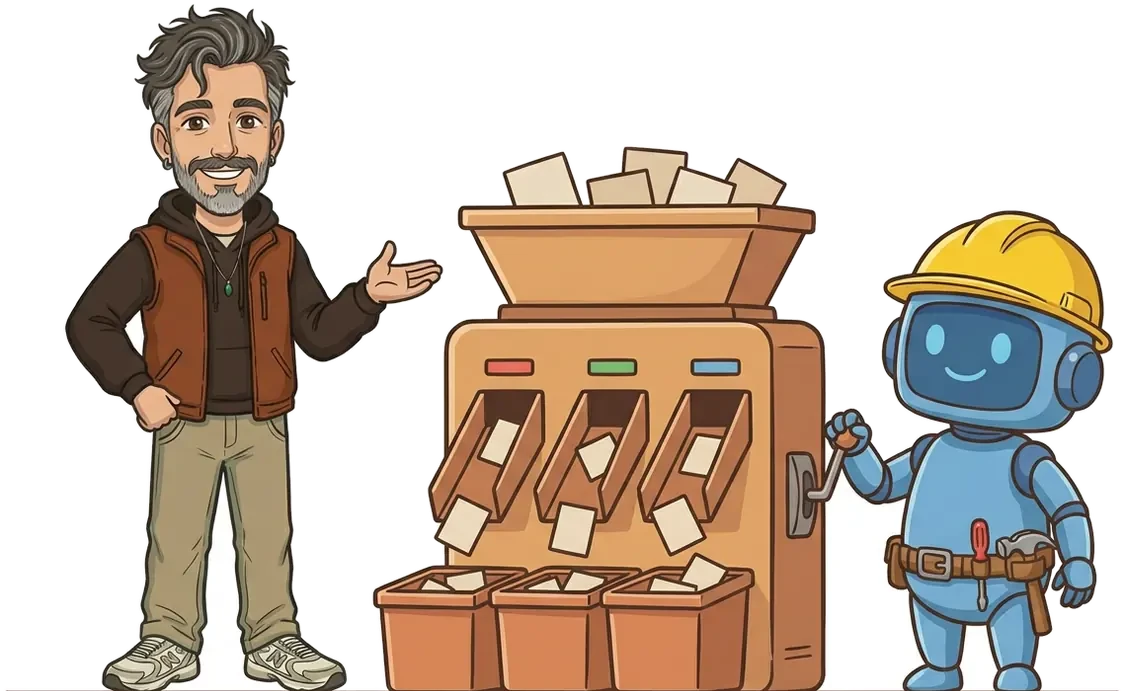
The feed from your online store is almost never good enough for Google. With Channable you put a smart layer in between: your store supplies the raw data, Channable turns it into a complete feed per channel. This is how to do it.
Import your store feed
Connect your store or feed file. Check right away that prices and stock arrive exactly, with cents.
Build the titles with rules
Build the title from separate fields, such as brand, model, type and color. One rule applies to thousands of products at once.
Fill in missing attributes
Pull attributes from the description or from a second source, such as a supplier file. Think of color, material, size and GTIN.
Link the right category
Assign a Google product category per product group and add your own product_type.
Add custom labels
Label by margin, price band, bestseller or season. You use those labels in Google Ads to steer on profit.
Exclude what does not belong
Products without stock, with a 404 or that may not advertise. That keeps your account clean.
Export per channel
A feed for Google, Meta and ChatGPT, each with its own requirements. Schedule the export at least daily.
Tip from practiceAfter every new rule, check that the price still matches. At two online stores a rule rounded the prices: for one 1,603 products, for the other 2,275. Google sees that as a wrong price. After the fix, both showed 0 difference with the source.
Showing local inventory in Google
Do you have a physical store? Then you can show which product is in which store today. That works through free local listings and local inventory ads, including in Google Maps. From August 2026, local inventory ads run along by default in Shopping campaigns (Google Ads Help).
Link your Business Profile
Link your Google Business Profile to Merchant Center. Every store needs a store code.
Switch on the local channels
Switch on free local listings and local inventory ads for your product data source.
Create a local inventory data source
Per store and product: store_code, id, availability, and if possible quantity and price. The store code must be exactly equal to the one in your Business Profile, and the id equal to the one in your product feed (Google).
Wait 24 hours after linking
Synchronizing store locations can take up to a day. Upload the inventory after that (Google).
Choose how the customer buys
Pickup in store, or a store page per location with a link_template and the store code in the URL (Google).
Refresh every day
Local inventory changes fast. Outdated stock leads to disappointed visitors and disapprovals.
Tip from practiceDo not switch on local channels without an inventory data source. At a retail chain with eleven stores, that got every product disapproved for local, with the message ‘stores without inventory’. Online everything kept running, but locally the whole range was invisible.
Adding promotions in Merchant Center
With promotions you put an offer as a label on your product in Google, such as ‘10% off’ or ‘free gift’. That works in Shopping ads and in the free listings. The Netherlands is among the countries where this is possible (Google).
Amount or percentage discount
Example€50 off lenses
NoteMust be a real benefit compared with the normal price
Free gift
ExampleFree bag with every camera
NoteDescription of the gift and, if relevant, its value
Cashback from a brand
ExampleUp to €300 cashback
NoteSupported as a separate type
Free shipping
ExampleFree shipping from €50
NoteA discount code is often required
Give products a promotion_id
In your product feed, add a promotion_id to every promotion product. Case-sensitive, no spaces.
Create a promotions data source
One row per promotion with promotion_id, long_title (max 60 characters), start and end date, type and amount, and whether it applies online or in store (Google).
Make sure your site says the same
The promotion page must show exactly the same terms. Otherwise Google disapproves the promotion.
Plan ahead
A promotion is reviewed first. Submit it a few days before the start. A promotion can run for 183 days at most.
Tip from practiceBrand promotions such as cashback or instant discounts often run at several brands at once. Work with one promotions data source in a spreadsheet and a promotion_id per brand promotion. Then you switch a promotion on or off without changing your product feed.
New features and the latest updates
Merchant Center changes fast, mostly because of AI. These are the changes of 2026 you need to know (Google).
The new AI attributes, and how to use them
question_and_answer
What it doesQuestions customers ask, with the answer
How to fill itOnly product facts, no price, delivery time or warranty. Do not repeat the title.
related_product
What it doesAccessories and parts that go with it
How to fill itThe IDs of matching products from your own feed.
document_link
What it doesA link to a manual or specification sheet
How to fill itA direct link to the pdf.
item_group_title and variant_option
What it doesThe name of a product family and what the variants differ in
How to fill itFor example color or memory.
popularity_rank
What it doesHow popular a product is in your store
How to fill itBased on real sales figures.
product_highlight and product_detail
What it doesShort benefits and specifications
How to fill itFour to ten short points, no marketing talk (Google).
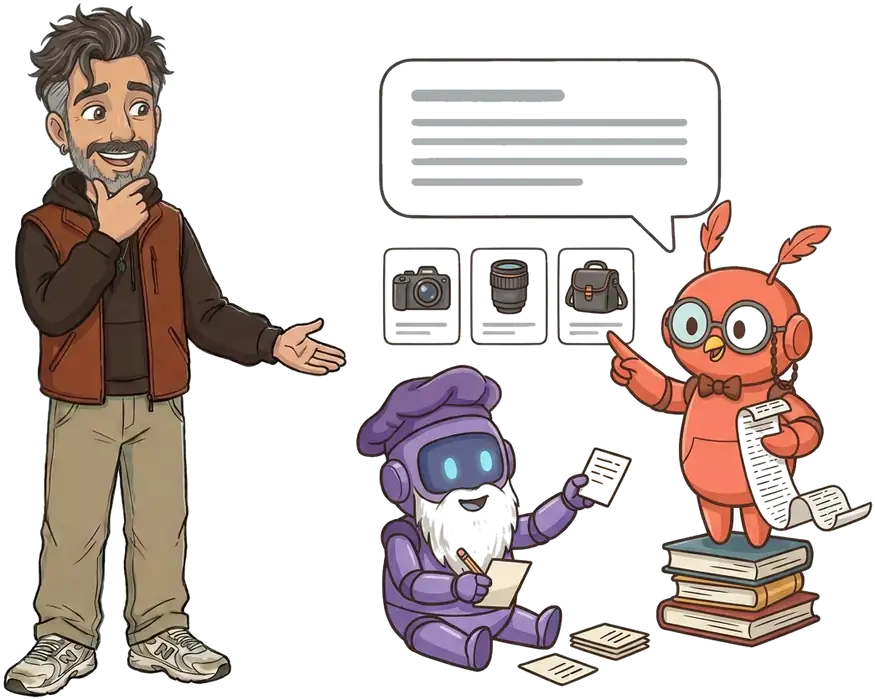
You add these attributes through a supplemental data source, so your main feed does not change. They have no effect on approval and not on regular Shopping ads, only on the AI features.
Tip from practiceAt two camera stores I made question-and-answer pairs from the existing product texts: 527 pairs for 191 products at one, 400 pairs for 156 products at the other. Every pair was checked against the source text. About half were dropped, because the answer could not be taken literally from the source. Strict checking matters more than numbers.
Merchant Center and Google Ads: paid and organic
Merchant Center and Google Ads work together. A good feed makes every campaign better, and with the right labels you steer on profit instead of revenue.
Shopping campaigns
You decide per product group what you bid. Ideal for steering on margin with custom labels.
Performance Max
Uses your feed in all of Google's channels. Divide your range into asset groups by margin or category.
Demand Gen and YouTube
Shows your products with imagery to people who are not searching yet. Good images are everything here.
Search ads from your feed
With a feed tool you automatically create ad groups and ads per product or brand.
For a retail chain I built 749 ad groups and 52 asset groups from one feed that keep themselves up to date: if a product disappears, the ad disappears too. In Merchant Center you see per product how many impressions and clicks it gets, paid and organic separately (Google).
More on campaigns: having Google Shopping managed and how to calculate ROAS.
Where Merchant Center is heading
The direction is clear: Google wants to be able to explain products, not just show them. Whoever gets that right now has a head start when these features become widely available in more countries, including the Netherlands.
From keyword to question
People increasingly ask in plain sentences what they are looking for. Products with rich attributes match more questions.
Buying inside Google
Google is testing checkout and brand agents in AI Mode. Your feed then becomes your store too.
One feed for all AI
The same product data also feeds ChatGPT and other AI assistants. A good feed pays off twice.
Quality over quantity
Google punishes errors harder. A smaller, correct feed beats a big, sloppy one.
Do you want to be found in ChatGPT too? Read ChatGPT ads and getting found in Google and AI.
Checklist: is your Merchant Center in good shape?
Go through these ten points. If you can tick them all, your basics are in good shape.
Website claimed
And business details complete.
Shipping and returns per country
Equal to your shopping cart.
Prices exact
To the cent, including VAT where required, sale prices too.
Stock is right
Refreshed every day.
GTIN for branded products
Real EAN codes.
Titles with the key attributes first
Without promotional text.
Clean main image
Plus extra images.
Category and product_type
For every product.
Custom labels on margin
Used in Google Ads.
Weekly check
For disapprovals and dead pages.
Free feed audit
Want to know how your feed is doing?
You get a check of your Merchant Center and your feed: what is missing, what is disapproved and what brings the most. Free and without obligation.
Frequently asked questions
What is Google Merchant Center?
Google Merchant Center is the free platform where you give Google your product data. That is how your products appear in Shopping ads, Performance Max, free listings and Google's AI features.
Is Google Merchant Center free?
Yes. Merchant Center itself and the free listings cost nothing. You only pay for ads in Google Ads and, if you use one, for a feed tool or a CSS.
How do I create a Google Merchant Center account?
Go to merchants.google.com, log in with your business's Google account, enter your business details, claim your website, set up shipping and returns and add a product data source. Then connect Google Ads.
Where do I log in to Google Merchant Center?
At merchants.google.com, with the Google account you used to create the account or that was given access.
What is a GTIN and do I need one?
A GTIN is the barcode number of a product, usually a 13-digit EAN in Europe and a 12-digit UPC in North America. It is required for branded products. Never make one up.
Why are my products disapproved?
Mostly because of a price or stock level that does not match the site, a page that no longer exists, a missing or wrong GTIN or an image with text. In Merchant Center you see the reason per product.
How do I show local inventory in Google?
Link your Google Business Profile, switch on the local channels and supply a local inventory data source with the store code, product ID and stock for each store. The store code must match the one in your Business Profile.
How do I add a promotion in Merchant Center?
Give the promotion products a promotion_id in your feed and create a promotions data source with the title, dates, discount type and where it applies for each promotion. The terms must also be on your site in the same way.
What are the new AI attributes in Merchant Center?
Since May 2026 you can supply things like question and answer, related products, manuals and popularity. They help AI Mode and Gemini understand your product and have no effect on approval.
Do I need Channable?
Not always. With a small range, your store's plug-in is enough. With hundreds or thousands of products, several channels or missing attributes, a feed tool like Channable saves a lot of work and errors.
Sources
- Google, Show your products for free on Google
- Google, Product data specification
- Google, Best practices for product data
- Google, Product highlight
- Google, Track product performance
- Google, Upload local inventory
- Google, Local inventory specification
- Google Ads, Local inventory ads
- Google, Store pages per location
- Google, Promotions specification
- Google, Get started with promotions
- Google, Local promotions
- Google, Merchant Center changelog
- Google, Content API sunset
- Google, Free listings and CSS (pdf)
- FeedOps, research on product highlights
- Dataïads, conversational attributes
- Nudge, Google Rethink Retail September 2026
Updated November 19, 2026.